
Viewport AutoPause — Active Framerate Cap
Idle and focus pausing only reclaim power during the stretches you’re away. But for the hours you’re actively working, the editor renders the viewport far faster than editing actually needs — by default up to 120 FPS (or 60 on battery), most of which your monitor and your eyes never benefit from. The Active Framerate Cap reclaims that waste.
It’s an independent lever, separate from the pause modes: modes decide what wakes a paused viewport, while the cap decides how fast the viewport runs while you’re using it. The two compose — turning the cap on never changes how pausing behaves.
What it does
When enabled, the cap limits the editor’s frame rate while you’re actively working to a ceiling you choose (the Active Max FPS value). Capping a viewport at, say, 60 FPS instead of letting it free-run to 120 roughly halves the frames the GPU draws — cutting power, heat, and fan noise across the bulk of a session, the part that idle pausing never reaches.
Choosing when it applies: Off, On, or Auto
The cap is a three-way control — you choose when it engages:
- Off — no cap; the editor manages its own frame limit. This is the default.
- On — always cap to your Active Max FPS while you’re working, on any power source.
- Auto — cap only while on battery, and release the cap the moment you plug in. Built for the every watt counts / laptop case: go easy on the battery, run unconstrained on the wall. The plug state is checked live, so unplugging or plugging in while the editor is running takes effect within a frame — no restart needed.
Auto and the 60 default. Unreal already throttles itself to 60 FPS on a laptop battery, so at the default Active Max FPS of 60, Auto behaves much like Off on a laptop — to feel a difference, lower the value (e.g. 30). Battery detection is reliable on Windows and macOS; on some Linux setups Unreal can’t tell it’s on battery, in which case Auto simply never engages.
It can only ever lower your frame rate — never raise it
This is the load-bearing guarantee. The applied cap is clamped to whatever the editor would run at on its own:
- the editor’s own default ceiling (120 FPS, or 60 on battery), and
- any lower
t.MaxFPSyou’ve already set yourself.
So if you set the cap higher than what the editor would render anyway, it’s silently clamped back down. Enabling the cap can only ever save power — it can never cost you any, and it can never speed your editor up past its normal limit.
Choosing a value
Set Active Max FPS anywhere from 15 to 60 (the default is 60):
- 60 — a good balance of smoothness and savings; the editor still feels fluid while you draw a fraction of the frames.
- 30 — toward maximum power reduction, ideal on battery. Still perfectly workable for most editing, with a small hit to mouse-look smoothness.
There’s deliberately no “match my monitor’s refresh rate” option — on a 144 Hz+ display that would raise the rate above the editor’s default and cost power, defeating the purpose.
Good to know
- Off by default. It’s strictly opt-in, so updating the plugin never changes behavior for existing users.
- Ignored during Play in Editor and Simulate. The cap never throttles a playtest — the same bypass that protects pausing protects the cap.
- Idle still wins. When the editor goes idle the viewport is paused outright (clamped far below any active cap), so the cap only matters while you’re working.
- The menu shows what’s happening. When the cap is Off, it reminds you the editor manages its own frame limit (typically up to 120 FPS, or 60 on battery), so you know what you’re opting out of. On Auto, it tells you whether the cap is engaged right now (“on battery: capping at N FPS”) or standing by (“plugged in: cap inactive”).
Turning it on
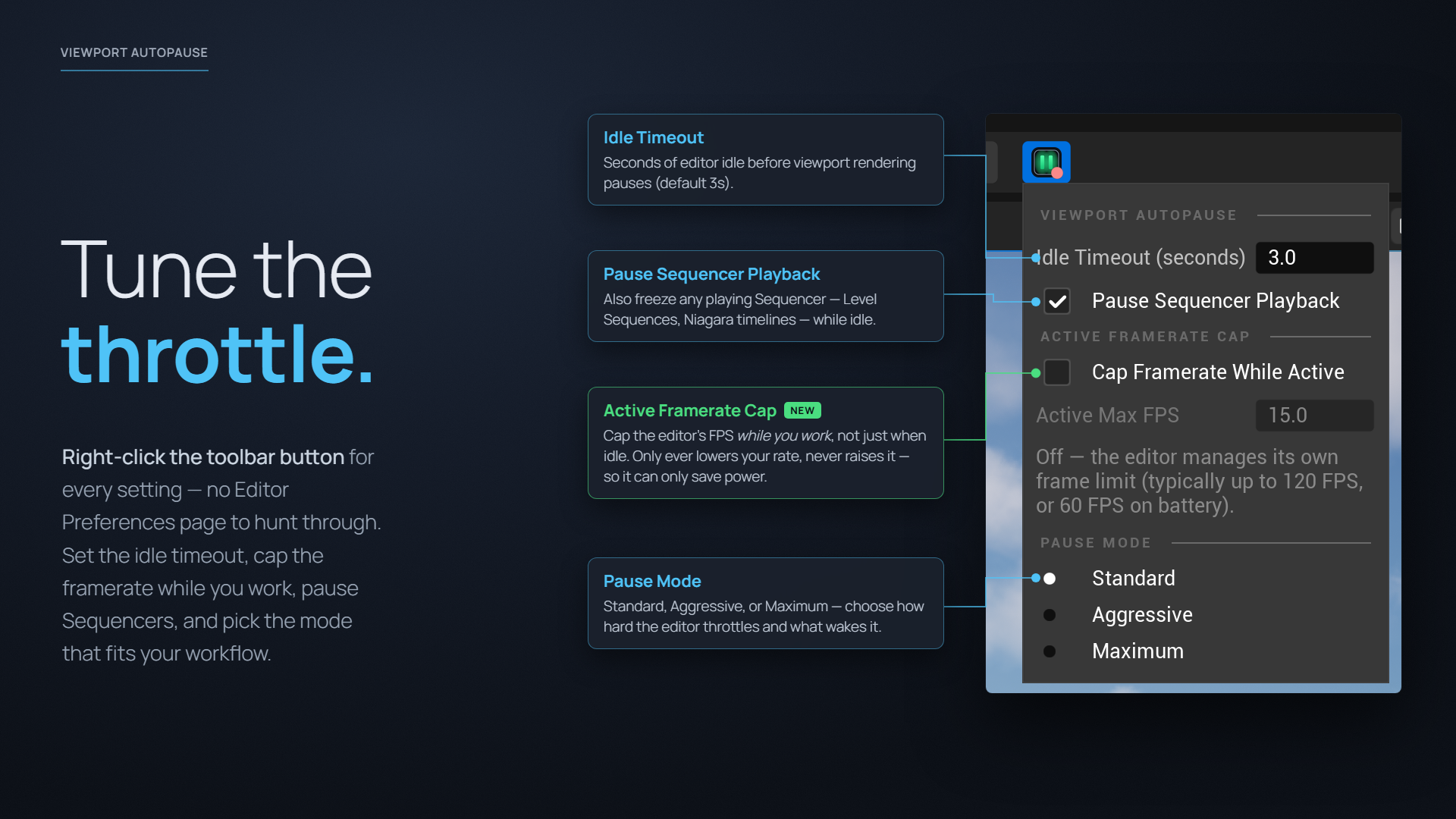
Right-click the toolbar button and find the Active Framerate Cap section:
- Pick a mode — Off, On, or Auto — from the segmented control.
- Set Active Max FPS to taste (15–60).
That’s it — the cap applies immediately and persists per-user across editor
sessions, like every other setting. See
Settings & Toolbar
for the full menu, or How It Works
for the t.MaxFPS mechanics under the hood.