
Viewport AutoPause — Settings & Toolbar
Where settings live
Every setting lives in one place: the right-click menu on the toolbar button. The plugin deliberately does not add an Editor Preferences page — the toolbar menu is the single place to change anything, so there’s nothing to hunt for under Editor Preferences.
Settings are per-user, not per-project — they follow you across every project you open on this machine, rather than being saved into any one project — and they persist across editor sessions. There’s nothing to configure per-project and nothing committed to your repo.
The settings
| Setting | Default | Range | Description |
|---|---|---|---|
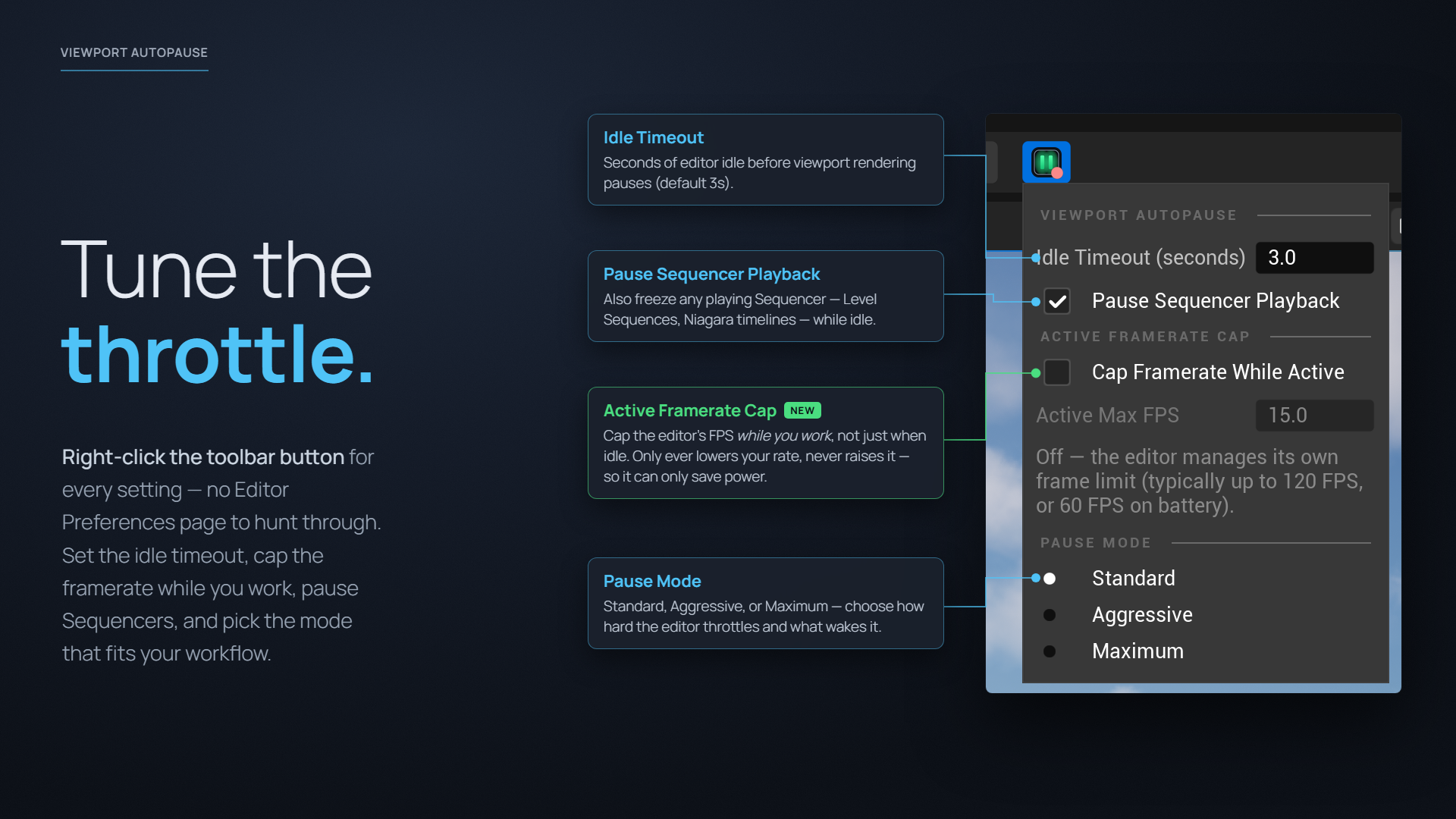
| Idle Timeout (seconds) | 3.0 | 0.5 – 120 | How long the editor must be idle before viewport realtime rendering is paused. |
| Pause Sequencer Playback | On | — | Also pause any actively-playing Sequencer (Level Sequences, Niagara emitter timeline, etc.) while the editor is idle. Sequencers that were already paused or stopped are left alone, and only the ones the plugin paused are resumed when activity returns. |
| Cap Framerate While Active | Off | — | When to cap the editor’s frame rate while you’re actively working, not just when idle: Off (no cap), On (always), or Auto (only on battery). See Active Framerate Cap. |
| Active Max FPS | 60 | 15 – 60 | The frame-rate ceiling applied while active, when the cap is On or Auto. Clamped so it never exceeds what the editor would run at anyway, so it can only ever lower your frame rate. |
| Pause Mode | Standard | — | How aggressively viewports are paused. See Pause Modes. |
About Pause Sequencer Playback. Realtime rendering and Sequencer playback are handled differently on resume. Realtime is fully plugin-managed, but Play/Pause in Sequencer is a deliberate user gesture — so the plugin snapshots which sequences it paused and resumes only those, rather than blanket-starting every sequence in your level. PIE/Game worlds are skipped here because they’re already covered by the PIE bypass.
Toolbar button & status dot
Viewport AutoPause adds one button to the main Level Editor toolbar. The small dot in its corner always reflects the current realtime state:
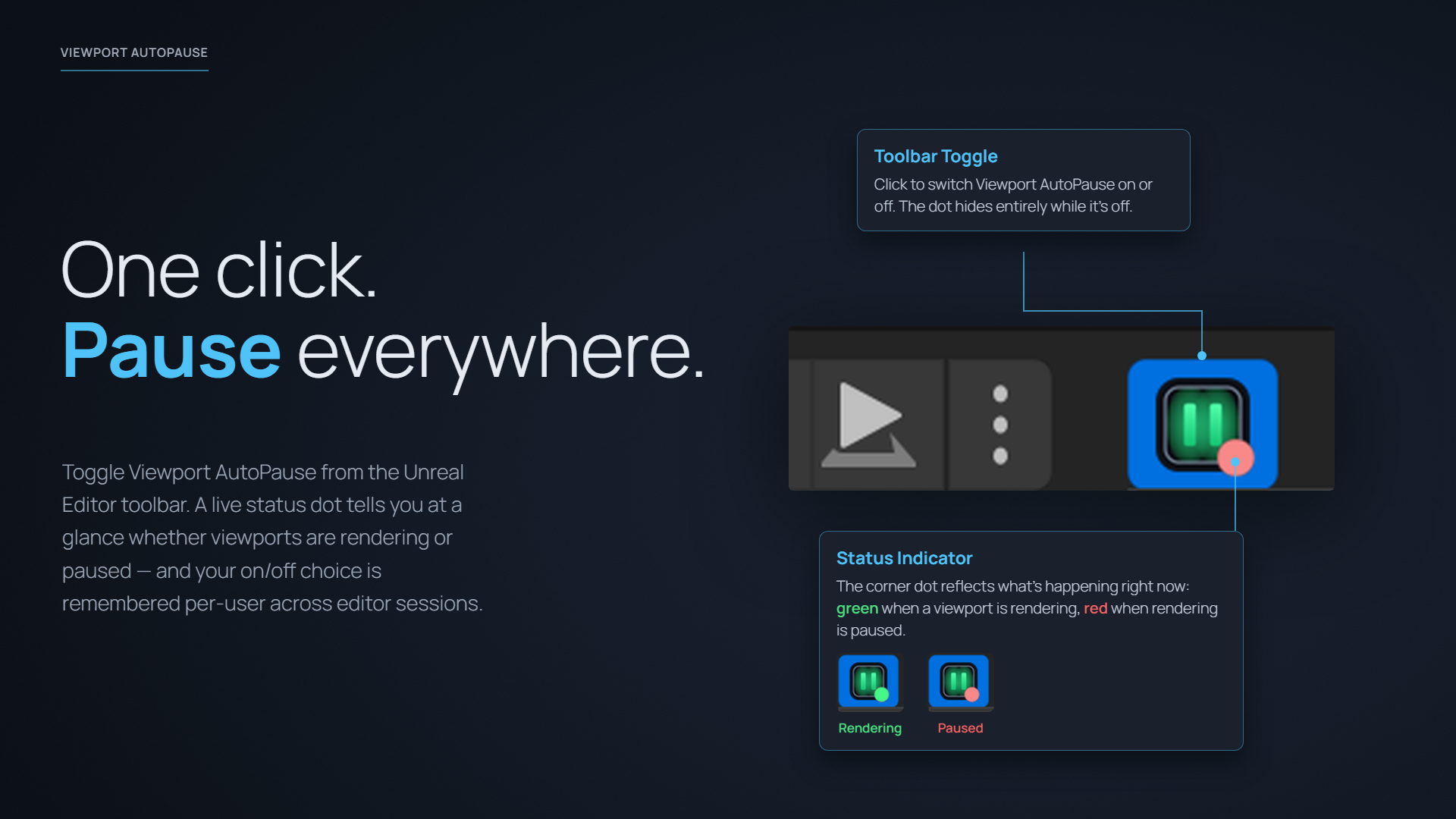
- Green dot — viewports are rendering. AutoPause is letting them run, or the plugin is toggled off, or PIE/SIE is active.
- Red dot — AutoPause has actively paused rendering: the idle timeout expired, the editor lost focus, or (in Maximum mode) no viewport has been interacted with yet.
The dot is hidden entirely while the plugin is toggled off.
Left-click the button to toggle the whole plugin on or off. Hover it for a tooltip with the live status in plain text.
Quick settings menu
Right-click the toolbar button for the settings menu — the idle timeout, the Sequencer toggle, the pause-mode picker, and the Active Framerate Cap control, all in one compact panel, with quick links to the documentation and Discord at the bottom:
Turning it on and off
- Toggle: left-click the toolbar button to turn the plugin on or off.
- It remembers your choice. The on/off state is saved per-user and persists across editor sessions — disable it, close the editor, reopen, and it’s still disabled. There’s no need to re-toggle it each launch.
- To remove it entirely, disable the plugin itself in Edit → Plugins (the Unreal plugin browser). That unloads the module completely, rather than just switching it to its idle-inactive state.