
Viewport AutoPause — Quick Start
Install the plugin and confirm it’s working in under five minutes.
1. Install from Fab
Viewport AutoPause installs straight from Fab through the Epic Games Launcher — there’s no folder to copy and nothing to compile yourself.
- Open the Viewport AutoPause listing on Fab and add it to your library (sign in with your Epic Games account if prompted).
- Open the Epic Games Launcher and go to Unreal Engine → Library.
- Scroll to the Fab Library section, find Viewport AutoPause, and click Install to Engine.
- Choose your engine version and confirm. The launcher downloads the prebuilt plugin into that engine.
- Launch the editor, or restart it if it was already running.
2. Confirm it’s enabled
Installing from Fab enables the plugin automatically, so most of the time there’s nothing to do here — skip ahead to the toolbar button below.
If the toolbar button doesn’t show up once the editor has finished loading, enable the plugin by hand:
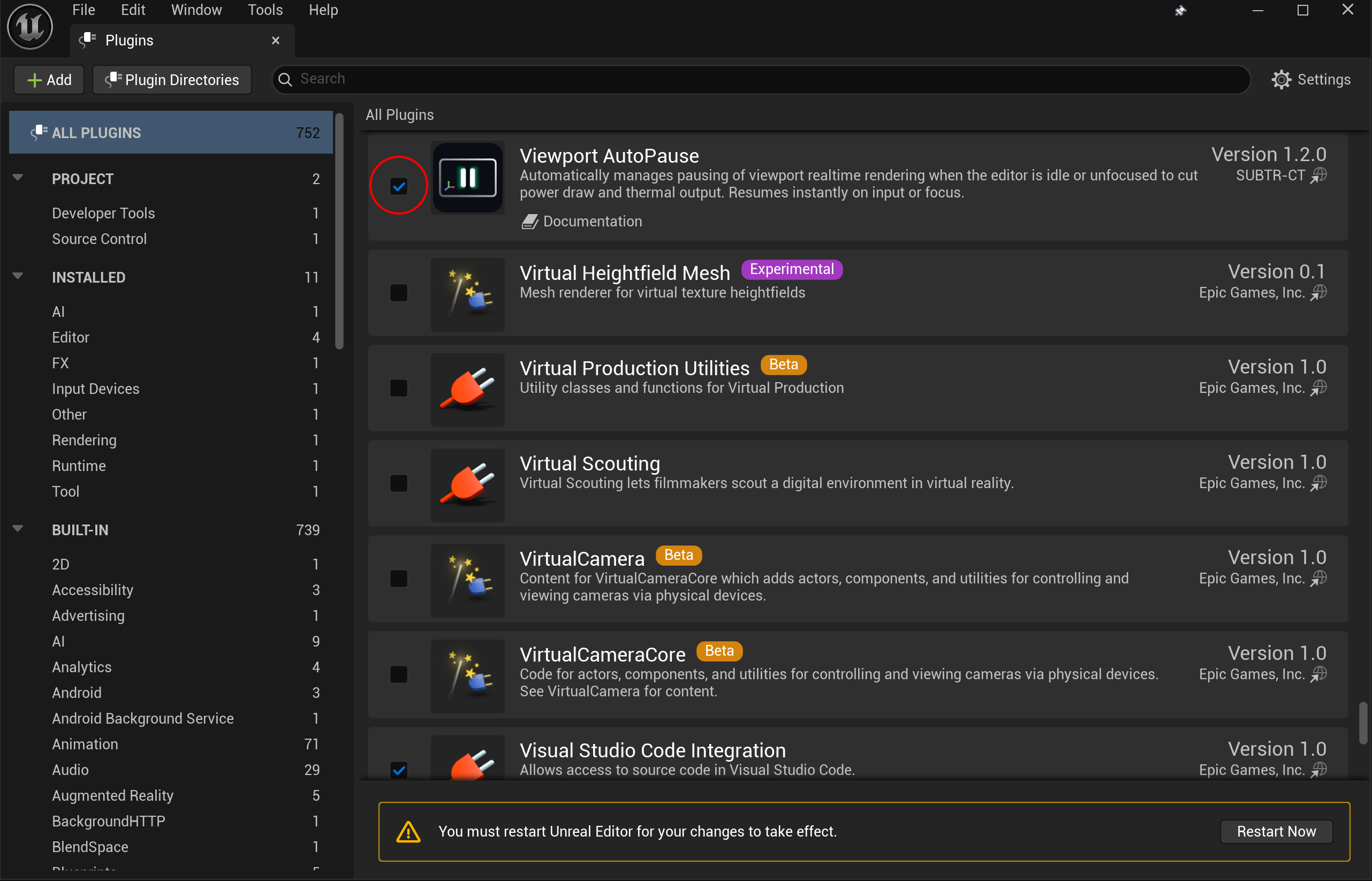
- Open Edit → Plugins.
- Search for “Viewport AutoPause” — it lives under the Editor category.
- Tick its checkbox.
- Restart the editor when prompted. The toolbar button appears once it reloads.
3. Find the toolbar button
Look at the main Level Editor toolbar. You’ll see the Viewport AutoPause button with a small status dot in its corner:
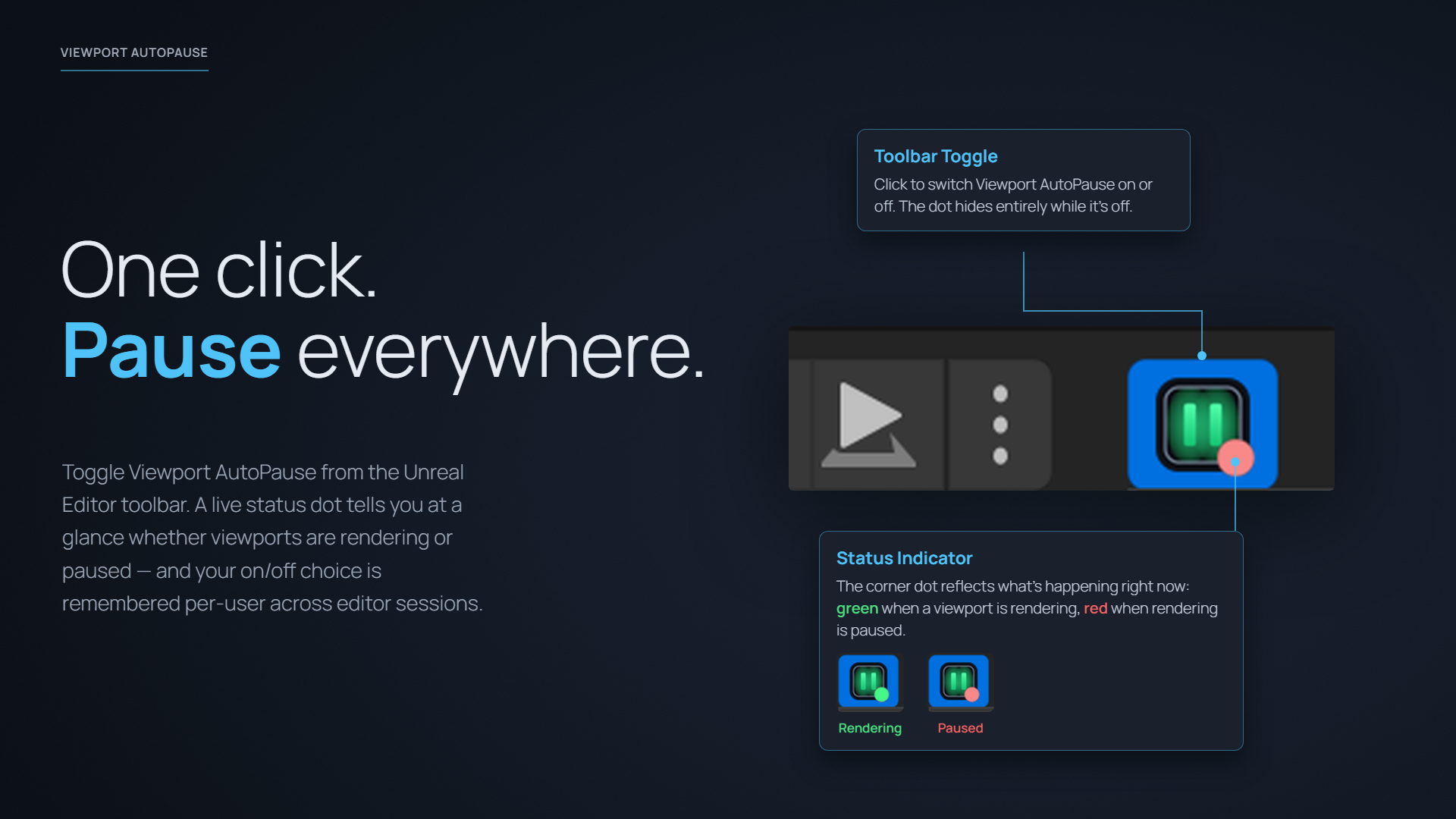
- A green dot means viewports are rendering right now.
- A red dot means AutoPause has paused rendering right now.
4. Watch it pause
- Make sure a Level Viewport is visible.
- Stop touching the mouse and keyboard.
- After the idle timeout (3 seconds by default), the status dot turns red — the viewport has stopped redrawing.
- Move the mouse or press a key. The dot turns green again instantly.
You can also tab to another application: the viewport pauses the moment Unreal loses focus, and resumes the moment you click back in.
That’s it — it’s already saving power. From here you can:
- Tune the idle timeout and other settings.
- Pick a pause mode that matches how much you want to save.
- Cap the framerate while you work to reclaim power even when you’re not idle.
- Read how it works under the hood.