
Viewport AutoPause — Pause Modes
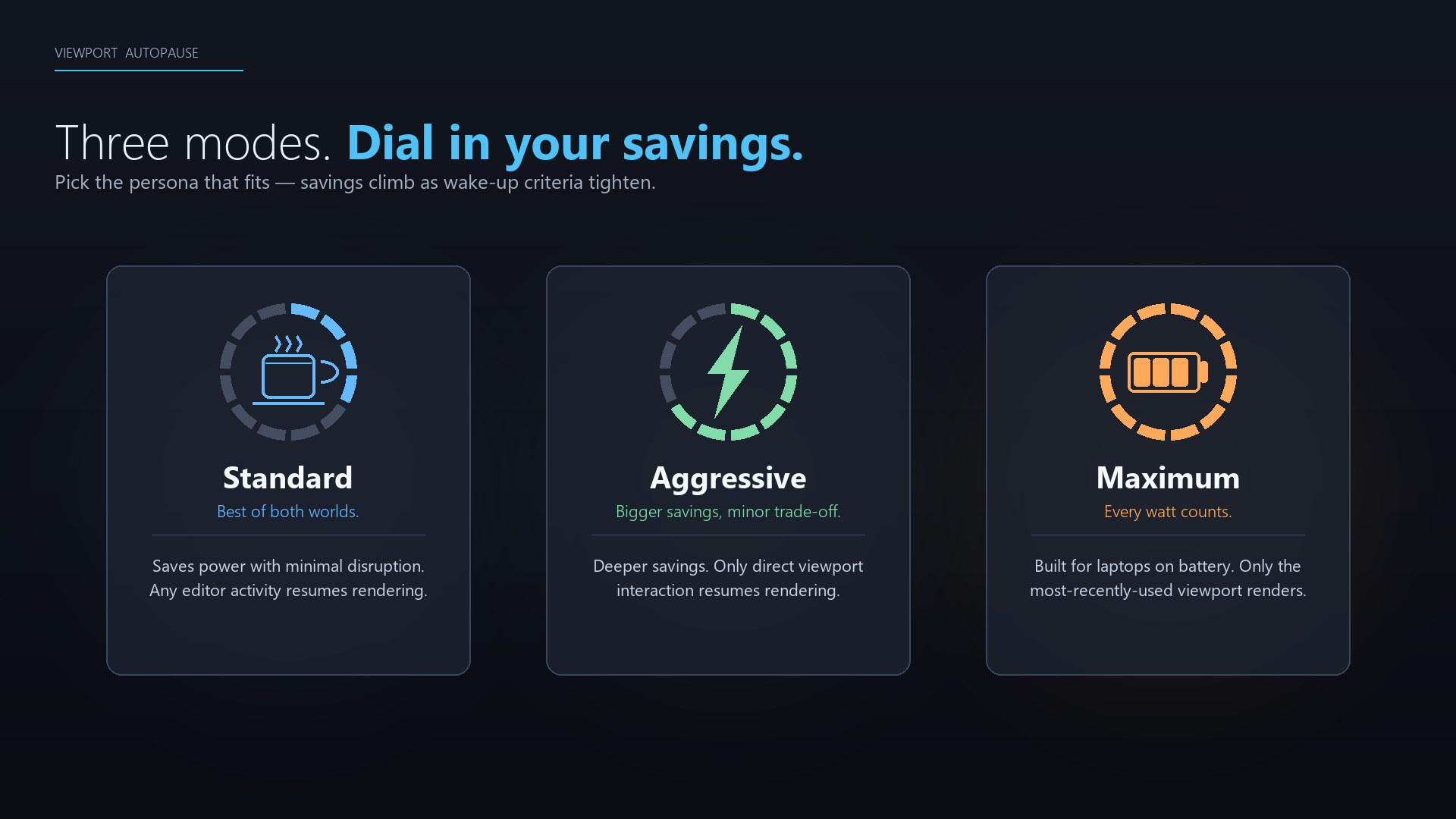
Viewport AutoPause ships with three modes. They all pause viewports after the same idle timeout — what changes is what it takes to wake them back up. The tighter the wake-up criteria, the more power you save.
Set the mode by right-clicking the toolbar button and picking it under Pause Mode — that menu is the only place settings live.
Standard — best of both worlds
For you if: you want power savings and lower heat with as little disruption as possible. You step away regularly, multitask across apps, and just don’t want Unreal idling at full GPU.
Viewports pause after the idle timeout, and any editor activity resumes rendering — a click, a keystroke, even a mouse move in any panel. You’ll rarely notice it working; you’ll just notice your fans are quieter.
This is the default, and the right choice for most desktop users.
Aggressive — save more, accept a small ask
For you if: you have a strong reason to save — high electricity costs, loud fans, or a hot room — and you’ll accept a minor inconvenience to get there.
Same idle pause as Standard, but waking viewports requires interacting inside a viewport — a click, scroll, or key press in the 3D view — which then wakes all viewports. Activity in other panels (Outliner, Details, Content Browser, etc.) is intentionally ignored, so the viewport stays paused while you work elsewhere in the editor.
Maximum — every watt counts
For you if: you need to save power — typically a laptop on battery, or another constrained setup where extra GPU load tanks your runtime.
Like Aggressive, only direct viewport interaction resumes rendering — but only that one viewport wakes, not all of them. Clicking into a different viewport immediately pauses the previous one, so at most one viewport renders at a time: the one you’re actively using.
A couple of behaviors worth knowing in Maximum:
- On a fresh editor launch, all viewports start paused until you click into one.
- The active viewport still pauses after the idle timeout — being the active viewport keeps it eligible to render, it doesn’t exempt it from idling.
Choosing a mode
| Mode | Wakes on | Wakes | Best for |
|---|---|---|---|
| Standard | Any editor activity | All viewports | Desktop, minimal disruption |
| Aggressive | Interaction inside any viewport | All viewports | Cutting power/heat, accept a small ask |
| Maximum | Interaction inside one viewport | Only that viewport | Laptops on battery, constrained setups |
All three respect the same idle timeout and the same PIE/SIE bypass — switching modes only changes the wake-up behavior described above.